Sunday, November 13, 2011

6 Scenarist (SD DVD) mysteries decode 11-13-2011 Update


11-13-2011 Update – adds 16:9 subpicture mapping bug workaround.

0. 16:9 subpicture mapping bug – how to avoid?

When you have a 16:9 widescreen project, your subpicture mapping will get screwed. Subpicture may not show in widescreen or letterbox mode. This is a well known bug in Scenarist. Here is the workaround.

Scenarist 169 custom subp stream 0_thumb[10]

In the mean movie, you need to specify the subpicture for widescreen and letterbox by pressing down the W or L button. The default is always W button. Normally you would have to supply two separate subpicture streams for both W and L. But now with the decreasing number of CRT sets out there, a quick way to do this is to supply one widescreen correct rendered stream for both W and L. This is achieved by just pressing both W and L for the same stream.

Scenarist 169 custom subp stream 1_thumb[2]

Now select the VTS in Scenario Editor. In the “Subpicture Availability Flag Policy”, change it to to “Custom”. Now the available subpicture streams will be shown. In the example, there are two subpicture streams, one for English, one for Chinese.

Scenarist 169 custom subp stream 2_thumb[2] 

Select the PGC of the main movie. Double click “Subpicture Attribute”. Here there are two items listed corresponding to the streams previously set in VTS. Double click the first “PGC Sub-Picture Attr” item. For Decoding Stream Number for Widescreen, check 0 English (wide & Letter); For Decoding Stream Number for Letterbox, check 0 English (wide & Letter). This will map the subpictures 1 to both widescreen and letterbox mode. This means when you view the disc on widescreen TV, the subpicture for the widescreen mode will be picked up; when you view the disc on 4:3 Letterbox CRT TV, the subpicture for the letterbox mode will be picked up. Do the same thing to the second “PGC Sub-picture Attr” item, but change the subpicture to Chinese ones.

image

After muxing, you’ll see the results.

This is the quick way to do, but if you want  to follow the 16:9 corrected subpicture for 16:9 mode and 4:3 corrected subpicture for 4:3 mode rigorously, you have to supply two subpicture streams and map them correctly.


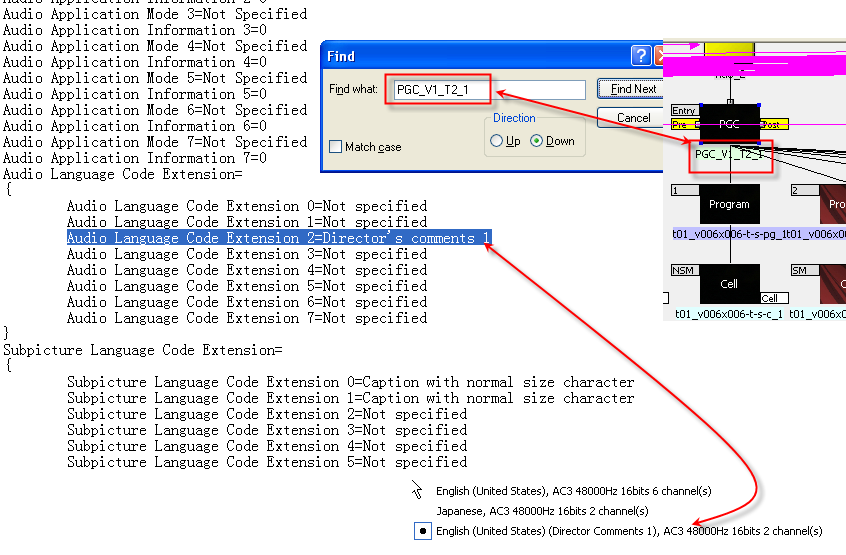
1. Audio/Subtitle Language Code Extension – how to?

Sometimes when you play a DVD in software players (PowerDVD, winDVD, etc), you’ll notice that the audio has more than the regular information (AC3, DTS, etc), the audio also shows if it’s a auido commentary, or a captions, etc. The same goes for subtitles. So how do you do this?

The painful way is to edit the *.scp project file, to get *.scp file, you need to export the project first…


ENLARGE


The easy way is to edit in scenario editor. Click on the VTS, in Property Browser, you’ll see "Audio language code extension” and “Subtitle language code extension”, double click those, you’ll get to see those settings via drop down menu.

Note: this editing affects all the titles under VTS. So if you don’t want other titles to have these properties, you’ll need put those under a different VTS.


2. Push the disc’s size boundary, where’s my layer break?

Once your project size is over 8GB, scenarist starts to go “red” on layer 0 and layer 1. It’s more of estimation, you can ignore the reds, and still add stuff. But each layer has to be around 4.20GB, that’s the limit of layers. If you go over 4.20GB on each layer, your project is over size. If you choose OTP, then Layer 0 must be bigger than Layer 1. But how much bigger? Scenarist will give you a wrong impression that as long as Layer 0 is bigger than Layer 1, that’s OK. But in reality, to get a valid layer break, Layer 0 need to be at least 0.04GB bigger than Layer 1 to be safe, also when you use lots of still images, the estimation is extremely inaccurate, still images (browseable slides usually take less space then the estimation)

The real layer break can be seen easily using Rom Formatter.

Per the Imgburn, an empty Verbatim 2.4X DVD+R DL will have 2,086,912 sectors on each layer. When you compile the project, scenarist will give you the correct layer size (in information Browser - Build) as sectors as well. Add 16 sectors on top of that (Imgburn does the 32K padding to ifo/bup automatically), that’s your real layer break in Imgburn. In this case as shown above, scenarist indicates layer 1 starts 2084144, add 16, you get 2084160, that’s your real layer break which is still under the maximum 2086912, so that you can burn with no worry.


3. How to put PC files on the same disc?

Photobucket

Photobucket

Photobucket

Photobucket

The DVD file system is actually more complicated than Blu-ray’s UDF 2.5, UDF 2.6. The added Joliet supports foreign characters, also characters longer than 8.


4. Wrong button mapping although previews fine in simulator window

Photobucket

so this new problem is the most recent one that I’ve discovered. I’ve been scratching my head about this weird issue. This seems to be only happening on my new authoring machine (dual core), I’ve never had this problem on my old notebook (single core).
Finally I was able to pinpoint the problem last night.

This issue arises from when modifying couple projects demuxed by DVD Reauthor Pro, while the original discs are compiled using DVDMaestro. Using scenarist, while the menus previewed fine, the compiled projects have messed up button mapping. Above picture as viewed in PGCEdit. The left column, from top to bottom, supposed to be 1,2,3,4, but the last button now is #6! Also the button routing information is messed up.


Photobucket

So in scenarist, you can choose to view the button properties.

Photobucket

The normal buttons have the same coordinates.

Photobucket

But the troubled buttons will have different coordinates for three highlight areas.
This is where it’s causing problems. Apparently the compiled projects will set the Highlight area 2&3, instead of the supposed Area 1.

The solution to solve this problem is to delete the highlight entirely, and do it from scratch.

Correction 10-03-2009:

Looking more into this issue, I think it’s not related to DVDMaestro->Scenarist conversion, but a rather button group problem. The hightlight area seems to corresponds to the button group. DVD allows three button groups, so each highlight area links to each button group. The problem arises when after making the button highlight coordinates, if you drag the area around, it will mess up, because dragging  the area seems always changing only the highlight area No.1. So if your button group is assigned to 2, the corresponding highlight area No.2 is still the original coordinates!

The EASIEST solution to solve this problem is to delete the highlight entirely, and do it from scratch, and DO NOT change anything thereafter.


5. Multiangle - the non-seamless way

This is more like encoding guideline for Canopus Procoder. I used to just use CCE to do any multi-angle encodes. Later I had success with Sonic CineVision with their guideline. But I've never tried using Procoder. So finally I took some time and played around with it.

The basic things for multi-angle encoding is to use closed GOP, CBR, disable scene detection, and make the angles same picture structure.

CCE has a multi-angle template:

CCEmultiangle1

Procoder settings:


Non-seamless angle in Scenarist:

The only thing different from the seamless angle (default) is to click on scenes, and pick Non-seamless drop down in property browser. By doing this, now you can add different audio and subtitle tracks to different angles, as long as the corresponding audio and subtitle has the exact parameter. The final result is when switching the angle, the audio and subtitle also switch automatically. Blu-ray has this non-seamless property by default.


6. Random, shuffle PGCs

Photobucket
 
To make PGCs random or shuffle is not that hard, but this is my first time to deal with it. So I just need to mention a few important points. First the term “Repeat Times” here is very confusing, what is really means is how many programs you want this PGC to play. PGCEdit actually got the same term as what I think the best.
 
Photobucket
 
Note that the number of programs you want to random or shuffle needs to be “+1” if you want a complete loop (that is to cover every program to play once in shuffle mode) So say if you got 62 programs and you want all programs to play at least once in shuffle mode, you need to put in 63 (62+1) in the “Repeat Times” field.
 
Photobucket
 
During my authoring, I got this error message "The first Program must be set as a Chapter if the PGC is in random or shuffle mode.” For some reason, my PGC was messed up with no chapter number (the little number 1, 2, 3 as shown in the upper part of the picture). But for a valid random, shuffle PGC, it needs one chapter number on the first program as seen in the lower part of the image. The rest Programs don’t have numbers! My solution to solve the error was to completely remove all programs, and add them back. Thankfully the setting retains.

To be continued…?

Monday, November 7, 2011

Rokushin Gattai God Mars Blu-ray Report


So apparently one of the Japanese Blu-ray manufacturer has gone out of mind and released something super unacceptable: putting DVD spec’ed video onto Blu-ray disc. The title is Rokushin Gattai, they managed to put 32 episodes of 24min onto one disc, for a total of near 800min. The video is encoded with 4 episodes in one segment, with 480i resolution and average bitrate around 8Mbps. I guess they just went back to the DVD master, and re-encode the master with Blu-ray AVC codec.

So they managed to put the entire series – a total of 64 episodes onto two BD50 discs. Accompanied with the Blu-ray, there’s also the so-called Blu-spec CD, but apparently they are just regular CDs…

DISC INFO:

Disc Title:     BDROM
Disc Size:      48,717,101,283 bytes
Protection:     AACS
BD-Java:        No
BDInfo:         0.5.6

PLAYLIST REPORT:

Name:                   00000.MPLS
Length:                 12:56:28 (h:m:s)
Size:                   48,679,630,848 bytes
Total Bitrate:          8.36 Mbps

VIDEO:

Codec                   Bitrate             Description    
-----                   -------             -----------    
MPEG-4 AVC Video        7454 kbps           480i / 29.970 fps / 4:3 / High Profile 3.2

AUDIO:

Codec                           Language        Bitrate         Description    
-----                           --------        -------         -----------    
Dolby Digital Audio             Japanese        448 kbps        2.0 / 48 kHz / 448 kbps

FILES:

Name            Time In         Length          Size            Total Bitrate  
----            -------         ------          ----            -------------  
00000.M2TS      0:00:00.000     1:12:49.631     4,381,095,936   8,021          
00001.M2TS      1:12:49.631     1:12:47.763     4,452,089,856   8,154          
00002.M2TS      2:25:37.395     1:12:47.596     4,534,542,336   8,306          
00003.M2TS      3:38:24.991     1:12:47.830     4,574,717,952   8,379          
00004.M2TS      4:51:12.822     1:12:47.629     4,711,397,376   8,630          
00005.M2TS      6:04:00.451     0:48:31.842     3,151,982,592   8,660          
00006.M2TS      6:52:32.294     1:12:45.928     4,570,017,792   8,374          
00007.M2TS      8:05:18.222     0:48:31.875     3,026,233,344   8,314          
00008.M2TS      8:53:50.098     1:12:47.396     4,581,703,680   8,393          
00009.M2TS      10:06:37.494    1:12:47.229     4,529,362,944   8,297          
00010.M2TS      11:19:24.723    1:12:47.563     4,679,147,520   8,571          
00011.M2TS      12:32:12.287    0:24:15.921     1,487,339,520   8,173          


BDROM-00000-bitrate-10s

Thursday, November 3, 2011

Oct 2011 BD Purchase Part 2 – Macross Frontier Movie 2 Sayonara No Tsubasa マクロスF 恋離飛翼~サヨナラノツバサ~

 
Photobucket
 
So after waiting patiently for two weeks, I finally got my Macross movie 2 Collector’s Edition.

Photobucket

At 10,000 Yen, approx. $140 for this box, it’s absolutely THE most expensive Blu-ray box I’ve ever spent, and it’s only for a single movie (oh, well, a game too).

Photobucket

The collector’s edition has more external bonuses, all the first and second row items are bonuses for this Hybrid special edition. If you buy the regular edition, you only get the bottom row stuff, which is the movie itself and a box. I think it’s worth the extra $40 for the special edition.

Photobucket

The movie itself comes with a 48 page booklet and a box, same as last movie – Itsuwari no utahime (false songstress). Movie spec is 1080p 24fps video, LPCM 2.0 and DTS-HD MA 5.1, same as last time. It came with the game Macross Last Frontier. Unlike the movie’s bundle with the Macross Trial Frontier, I think this is actually a full game. The game play is about the same, but it has some ground fighting inside MF islands mimicking the scenes from the movies. There are quite a few trophies, but it’s a lot harder to get unlike in Trial Frontier.

Photobucket

Now moving on to bonuses for special edition. First you get the 原画 Original Drawing (60 total) collection and Blu-ray jacket posters (37 total) collection.

image

image


Photobucket

Photobucket

You also get the AR script books, print out ones. Each one has over 500 pages. This is a big reason I chose the special edition.

Photobucket

And you get the shrink sized pamphlets they gave away during the movies. I’m not sure how big the original is, but these are decent booklets. It’s a bargain for the movie goers, considering the ticketing price in Japan isn’t significantly higher than the ever increasing US prices…

Last thing for the physical goods is the film strip, I have a little better luck this time. I got Cathy Glass with Bobby standing on Macross Quarter’s bridge.

Aside from all these physical goods, you also get redeemable code for two exclusive PS3 themes. Of course you need a Japanese PSN account. The themes are poorly made IMO, icons are very repetitive and not complete.

Photobucket

Now putting the two movies side by side.

Photobucket

The big box is designed to hold both movies. And it does fit everything as you can see.

Samsung NP350U2B-A01 12.5in Notebook Brief Review/Initial Impression


Photobucket
 
Another notebook bought for other people. This time it’s an ultraportable.
Here are some spec from Amazon:
 
Product Features
  • 2.30 GHz Intel Core i5-2410m "Sandy Bridge" dual-core processor
  • 4 GB of installed DDR3 RAM
  • 500 GB SATA hard drive
  • 12.5-inch LED-backlit widescreen display, Intel GMA HD graphics
  • Microsoft Windows 7 Home Premium

Processor, Memory, and Motherboard

  • Hardware Platform: PC
  • Processor: 2.3 GHz Intel Core i5
  • Number of Processors: 2
  • RAM: 4 MB
  • RAM Type: SODIMM

Hard Drive

  • Size: 500 GB
  • Type: Serial ATA

Cases and Expandability

  • Size (LWH): 11.77 inches, 7.7 inches, 0.98 inches
  • Weight: 3.09 pounds

Well, this Samsung is the first ultraportable notebook I’ve ever used. Model number is Samsung NP350U2B-A01. Here is my initial impression about it after using it for around 10 hours. The size is between the popular 12in and 13.3in. The weight is around 3lb which is pretty light IMO. And it’s under 1in thin.

Photobucket

In comparison with an HP touochpad.

Photobucket

Now the screen does have anti-glare coating, which made it easier to view under sunlight or rooms with lots of ambient light. The screen has a standard 1366*768 resolution, good enough for such a small screen IMO. The highest brightness is the not as bright as other laptops I’ve used. But it does the job. Overall color reproduction seems decent. There is a webcam on the bezel as well. But the mic is underneath the keyboard as seen below unlike majority of the laptops which have these two built next to each other.

Photobucket

There’s no backlight on the keyboard. The thing I don’t like about this keyboard layout is that there are no dedicated pg up and pg dn buttons, instead you have to press Fn combo key to get them. The touchpad is pretty sensitive out of the box, I don’t have to do any adjustment for sensitivity. But it doesn’t have vertical/horizontal scrolling enabled out of the box…. I have to enable it in the software.

Also as you can see, there are a few LED lights on the keyboard/palm rest area. Good thing is they are blue and not super bright, which is very good for use under dark room. Bad thing is that once you close the lid, you can’t see any of these status LED, including the power charging and ON/OFF LED… Also there are no dedicated wireless on/off switch. The laptop claims a 3s quick start feature which from closing the lid to sleep mode to opening the lid to OS, it requires only 3s. From the testing I got, it seems work well, but I don’t have any heavy software running in the background. Also not sure if there needs to be some Samsung specific software to make it work.

Photobucket

Move on to the expansion slots, on the right side, it has earphone/mic, SD card reader, 1xUSB 2.0 port, 1 VGA port (comes with adapter), and a Kensington slot. The audio chip is a Realtek chip with some Samsung custom plug-in throw in. There are two speakers underneath the laptop, at the front palm resting area. The sound quality is bearable. They aren’t very loud though.

Photobucket

On the left side, it has power plug, LAN port (not sure if it’s a gigabit port), HDMI, and 1x USB 2.0 ports. The HDMI is provided by the onboard Intel HD 3000 graphics.

For wireless connection, you get the standard wifi b/g/n (I think it’s an Intel chip), and Bluetooth 3.0. For some reason you can’t turn off Bluetooth permanently, you can turn it off via Samsung’s software control panel, but the next time it reboots, the Bluetooth radio turns on automatically.

As an ultraportable, this notebook doesn’t have an optical drive. But ironically Samsung does provide a recovery disc. I haven’t seen recovery disc for the past few years now…

The battery lasts about a good 6hr after a first time fully charged. The power brick is pretty small and portable. It has PowerPlus Battery, a similar technology as SONY’s Battery Care function where it charges the battery upto 80% full, and able to retain the charges for upto 1000 times.
 
Photobucket
 
Up until now, you must be wondering where’s the fan? Well, it’s behind the machine. It generates very little heat, and is very quite. Out of the box, the power scheme is using Samsung’s optimized power scheme. There is an even quieter mode which can help with the battery time too.
 
It comes with a 500GB HDD, upon starting, it gives you the option to partition the drive which is very nice. The minimum size you can set for the C drive is 50GB.
 
The OS is the standard win7 Home Premium 64bit, preloaded software is minimal, the only nag software is the Norton antivirus.
 
Packed with an i5 2nd gen CPU, and 4GB DDR3 memory, the overall operation is quite snappy. But due to the time I have, I only tested windows experience index which seems pretty high except for the graphics, windows media center, and youtube video.

Conclusion:

For the short period of time I tried this machine, I seem to have no issues with it. I hope it stays the same way, still a bit worry about Samsung quality though since its laptop line is pretty new. The only concern I have is the status LED are not visible once the lid is closed, so that you don’t know exactly if the machine is running or not since the heat generation is minimal. As far as ultraportables are concerned, I think the battery life is solid for its 6 cell battery.


Monday, October 31, 2011

Oct 2011 BD Purchase Part 1 – Harry Potter, etc

 
Photobucket
 
Photobucket

 Some random purchases made this month, was expecting Macross Frontier Movie 2 coming, but these pop up. So with the two more Harry Potter movies (Bestbuy exclusives), I now have six movies, two movies away from a complete collection. Last time I was buy these Harry Potter movies were way back in 2007 I believe, when HD-DVD was on the verge on disappearing. And the two bottom from target has to be the cheapest Blu-rays I’ve ever got, just in time compensating the ultra expensive Macross Frontier Movie 2.

CIFS mounting – webOS vs. Android


So I’ve been experimenting CIFS mounting on both webOS and Android lately. The CIFS mounting mounts a windows SAMBA network and displays as a folder in webOS or Android system, so that you can access your network share files as if they are local files. It’s a cool way to share music and video files, the ones that are typically large in size and cannot be conveniently copied or limited by the size of internal storage of Touchpad (32GB is still small). For my personal interest, I’m particularly interested in playing large video files (mkv) on Touchpad without transcoding. So let’s see how it plays out on Touchpad.

networkdrives_2011-31-10_031451

So on the webOS side, we have Network Drives, a homebrew CIFS mounting program. It was relatively easy to use. It supports unicode. Other programs including Kalemsoft media player and Internalz pro (need to enable hidden files) can access the shared files. The only issue I have with this program is sometimes I’m unable to unmount it unless I reboot. But otherwise it’s been pretty solid. Now the video playback part, on webOS, we only have two choices aside from the official player: Touchplayer (a port of mplayer) and Kalemsoft media player. Touchplayer only does soft decoding, and for me it’s not working at all. Kalemsoft media player, $5.99 is probably the only and the best choice for webOS platform. It does play majority of the video formats. It plays mkv to some degree since there are so many codecs supported by the format, it’s not easy to play everything. As for the mounting part, since it’s using wifi, anything HD or high bitrate will have trouble play smoothly.

ksmplayera_2011-26-10_130053

For Kalemsoft media player, the 0.4 update is quite significant. It can read unicode pretty well. It has a really well thought interface that includes a preview window with stream selector. BTW, it has really good performance with wmv. The wmv files shared from Japanese P2P somehow are packed differently with the audio, so that my PS3 always have problem picking up the audio, same thing happened on Android platform, but Kalemsoft plays them without any issue.

ksmplayera_2011-26-10_131033

It even detects the secondary video stream from some Japanese ts streams. But unfortunately as the stream is HD, it’s unable to stream it smoothly. It’s more like playing powerpoint…

ksmplayera_2011-26-10_130919

The 0.4 beta now supports srt, ssa, and ass subtitles. But unfortunately you don’t have much control over how to display them. First off, there’s no border on the subtitles, well you can choose to show the backgrounds like the hearing aid type, but for normal subtitles, there’s just no border which means if you were playing any 4:3 content, the subtitles will go blend into the background. You do get the choice to set a few, mostly primary/secondary colors, but white is always my preference. You can’t control the subtitle position, which means for 16:9 content, the subtitles will show up in the black bar, a good way to solve the color blending problem… Also the default font size, even with the largest, it’s still on the small side as seen in the screen cap. For mkv, I tried some 720P anime fansubs, which played pretty well. But for high bitrate HD video, especially the ones with DTS, it still choked. But still, these are the best result you’ll ever seen on touchpad without transcoding.


On the Android side, we have CifsManager. It is not very intuitive as it requires rooting and the matching kernel module (cifs.ko) file in order to display files in unicode, otherwise you get a bunch of squares. Or another choice is ES file explorer, which supports SMB share directory, not in the same sense as real mounting, but it’s just far more straightforward.

And for the players, we have tons of choices, but the results are quite similar – they don’t work as good as Kalemsoft media player for webOS. It maybe a problem with current CM mod not fully enable hardware acceleration or software decoding, or video players for Android just plain suck.

Sunday, October 16, 2011

Thoughts about webOS


Update:

HP has just released webOS 3.0.4, it makes the touchpad almost twice as fast (well, after the corresponding Govnah and UberKernal update which means still have to overclock to 1.5Ghz)

Well, just some random thoughts after installing CM7 for my HP touchpad. This maybe a rough comparison between webOS 3.0.2 vs. Android 2.3. This could be just some random rants as well… It is more expanded than the initial impression post I posted a few days ago.

Some good features about webOS 3.0.2:

1. Fairly good looking tablet interface. Dual/Triple pane, consistent design throughout the apps. Big plus for landscape mode.
2. Card system for multitasking. So that you always know what apps are running.
3. Synerge for managing multiple accounts, including many popular services.
4. Rotation lock/unlock in the notification area.
5. Good keyboard, especially with the numbers on top. Long pressing the numbers give you more features. Sometimes the keyboard layout isn’t consistent though.
6. Printer, although it only supports certain HP brand printers, it gives you easy access to print from almost every app. To bypass the limited printer support, you can install Touch2Pc Printer on your computer (this computer has to be always ON if you want to print something though)

The ugly about webOS 3.0.2:

1. Slowwww, almost everything is running slow, even after overclocking to 1.5Ghz, the apps are still running very inefficiently. Average app launching time is 5s-15s. This along with the language localization are the two real deal breaker for me to support webOS.
2. Very bad browser. The loading is extremely slow. The browser doesn’t have tabs. External links from certain sites almost never works (maybe killed by ad blocker?) And there’s no third party browser aside from advanced browser!

3. Card system takes way too much memory, you run out of memory fairly quickly. It might also be a problem trying to find the card you need.
4. Almost all the included apps didn’t have enough function. The email app doesn’t support search, nor finding labels for gmail. The calendar app won’t sync with google calendar automatically. The photo app lacks sorting, also only displays very low resolution. The video app supports practically mp4 with h.264 ONLY. The music app sometimes can’t handle unicode, can’t play music smoothly in the background.
5. Apps in HP catalog (app store) are mostly junk. What’s worst is that not a lot “HD” versions are available. I’m still puzzled why it’s so hard for developers to program some good apps. Also the apps are NOT cheap, the average is around $5-$10, many of them lack trial mode. You could end up spending a lot for crappy useless apps. The HP catalog doesn’t allow refunding.
6. Poor language localization. Well, it’s almost non-existent. With 3.0.4, it’ll add Chinese localization, but that’s about it. Poor unicode support. Both iOS and Android system support all almost all the major languages out of the box.

Now on the Android 2.3 side, the system is obviously NOT made for tablets. Even for the tablet optimized 3.0, things are not looking good either. The percentage of the “HD” versions on Android market are sparse just as HP catalog probably due to 3.0 is closed source and not too many real tablets are out there. Hopefully with the release of 4.0 ICS, things will change. The system also lacks a rotation lock/unlock function as seen in webOS. Majority of the apps are obviously designed for the cellphones, which use portrait mode most often. Or even if they do support landscape, they require manually readjust, or only rotate in certain angles, or in landscape mode, you lose access to certain function. It doesn’t have as elegant printing solution as webOS, either.

Some specific apps for directly comparison, these are the apps I use most often:

File Management:

Internalz for webOS: it’s not a native app for webOS 3.0, therefore it only supports portrait mode, but the graphics work fine. Coupled with file manager from preware, it’s a decent file manager and ipk installer for webOS.

Gemini File Manager for webOS: one of a few other options from HP catalog, $2.99. It’s a dual pane manager, supports windows SMB local network.

ES File Explorer for Android: Very versatile file manger. Supports almost every function (local, SMB, FTP) you could think of. It even has a music and video player built-in.

WiFi File Explorer for Android: manage your files via wifi. It’s a good compliment to ES File Explorer.


Chinese IME input:

Baidu IME for webOS: The design mimicks the native keyboard, even down to those number keys. The only problem is that it won’t remember the last input (English or Chinese), every time it seems to enforce Chinese. Also there seems to be no way to change input method like in Android, once you install this input, it will be your default keyboard.

Sogou IME for pad for Android: It is the only Chinese IME input that has a pad version. The design also resembles the webOS IME, but the number keys are not turned on by default. This is the only one that’s optimized for pad use, what can you do… Generally, I like Baidu better, if it ever gets a pad version, I would switch to it immediately.


Book reader:

Amazon Kindle: The webOS version has a double page design (like a real book) in landscape mode which the android version lacks. But the android version has a dictionary which can be handy for people like me who’s not a native English speaker. The webOS version also has a slightly more intuitive, clearly labeled interface.

pReader (epub) for webOS: The native alpha version is the “HD” version. It’s extremely buggy. Lots of functions such as bookmark, jumping to specific chapter don’t work. The unicode support is spotty.

FBReader (epub) for Android: It’s very light weight. It has full support for epub format. It uses ColorDict. The only function it lacks is a bookshelf function. Otherwise this would be perfect.

There are a few other good ones for Android: ireader, moon reader, Aldiko, etc. But I prefer FBReader for its performance.

Adobe reader (pdf) for webOS: It’s only pdf reader I’ve tried. It lacks a lot of important function such as bookmark, quick access to chapter. People on precentral has been spending some effort to add these missing features. But I don’t have much use on reading pdf docs anyways. It also has some problem with unicode support.

Thinkfree Office (pdf) for Android: I didn’t try it enough to conclude anything. But it does open pdf…


Dictionary:

Hoshidict for webOS: Has tons of dictionaries to download, and they appear to be pretty accurate. The only thing it’s lacking is online function, it doesn’t support searching for google translation or wikipedia. So it’s a very decent offline dictionary ONLY. It doesn’t support pronunciation either.

For Android: Well, there are quite a few dictionaries here. Aedict is for Japanese, ColorDict is for multi-language. For online dictionaries, you also got google translation, WWWJDIC, etc.


Office:

Quickoffice (doc, xls) for webOS: It gives you basic function to edit doc, docx, xls, xlsx, but you can’t insert photos, nor draw your own pictures. It has integration with dropbox.

Thinkfree office (doc, xls) for Android: Aside from the basic function, you CAN insert photos, draw your own pictures. The “free” version that comes with my LG cellphone does not have integration with google doc, but the full version supposed to have it.


Note taking:

Tapnote for webOS: It is keyboard based. It has integration with dropbox. But the app is not cheap, costs $5… You are better off just using Quickoffice. I got it for free from the HP weekly giveaway, thankfully…

FreeNote for Android: It has a unique keyboard, handwriting mix mode. It also combines with calendar, to-do list. The interface is a little bit messy. But overall it has probably the most flexible features among all the note taking apps. The only feature it’s missing is export formats other than the only jpg, png or pdf are much preferred, or even better doc/docx.

Picture Viewer:

Synergy (native app) for webOS: It syncs to a lot of popular online photo services aside from manage your local photos. Only problem is that it doesn’t have sort function so that your photos are all over the place. Another problem is it indexes the online photo to local device with lower resolution.

JustPictures! for Android: It syncs to a lot of popular online photo services as well. It has sort function. Account management is not intuitive, but it does work. Wish it has a double pane design as webOS.


Comic/Manga Viewer:

One of the primary reason I bought for the Touchpad is to read manga.

ComicShelf HD for webOS: This is the only comic/manga reading app available for webOS, sadly… Well, if the native photo app supports sorting by names, I wouldn’t even need this app! That is to say I’m not satisfied with ComicShelf HD at all, it has way too many limitations and it runs slow as hell. It can only read *.rar, *.zip, *.cbr, and *.cbz files, and they all have to be placed in only “comic” folder. The way it reads pictures is that it first have to unzip, unrar all pictures, therefore it could take a longgggggggg time if the zipped files are too big. Sadly it couldn’t read uncompressed images… And the moment you close the card, you lose your unpacked files. It has very poor support for unicode, your file name cannot include any foreign characters, otherwise they won’t be recognized. It doesn’t have a right to left mode. It doesn’t have a single page mode to split pictures if they are scanned in per page. Well, for $1.99, I didn’t lose much.

Manga Reader for webOS: This is the only comic/manga reading app available for webOS to read fan translated manga. It downloads manga from certain server, and display it. It can not read your own manga unlike ComicShelf HD. The quality on the downloaded manga (English fan translated ONLY) is very poor, texts are often heavily dithered, and the fan translated manga has way too many watermarks on them, between chapters could be from different groups. Occasionally there is also server problem? so that the manga cannot be downloaded completely. The functionality however is more polished than ComicShelf HD. For $2.99, you get to enjoy some fan translated work as much as you can.

Perfect Viewer for Android: Like the name suggests, it’s really perfect. It has ten times more features than ComicShelf HD, it runs ten times faster as well. It opens compressed *.rar, *.zip, *.cbr, and *.cbz files within seconds. It doesn’t care where your manga are placed, it recognizes unicode extremely well, even for those wrongly coded character downloading from Share/Winny.

ComicBricks for Android: It has pretty much the same function as Manga Reader for webOS, but it only downloads from Chinese website (which means majority of them are Chinese translated). Image quality is far better, but it also means files are larger. It can be used as standalone manga reading app as well, but I would rather use Perfect Viewer. ComicBricks for finding the manga, Perfect Viewer to view is the perfect combo for Android!


Printing:

As I said earlier, webOS features a very convenient printing system, it’s accessible from almost all apps. For Android, cloud printing is worth trying, as long as you have an HP eprinter or any computer that uses google Chrome on. The most annoying part is that it’s not integrated into the system, so you have to print it inside this app. Another one I’ve tried is printershare, which costs $12.99, but thankfully I got it from Amazon daily app… It works similarly as cloud printing as a standalone app. Only difference is that you don’t need google cloud service, thus no computer is required to print.

Video Player:

KalemSoft meida player for webOS: it supports a lot of more media file types than the native ones, avi, mkv, wmv just to name a few. Subtitle support is non-existent. Mkv works ok, but don’t expect to work on all of them. If everything fails, there’s always the streamer to do real-time transcoding from PC to touchpad.

Moboplayer for Android: it supports a few media file types (everything is done by soft decoding here, otherwise none will play, at least on current CM7 mod). But still it lacks good support for mpeg2 HD (ts, tp), wmv etc. The mkv appears to work, 720p appears to play a bit laggy, can’t seem to switch audio track if more than one track is included. Video doesn’t always have the correct aspect ratio. It does support subtitle for mkv, externally or internally. Some other considerations: MX video player, Diceplayer, Vital player etc.

For online video, there is no dedicated youtube app for webOS, instead you use the web browser. Crackle works pretty decent, even better ad block seems to do a good job at blocking any ads. Hulu, you have to install the patch from preware to work, and it works intermittently.

For CM7 mod, currently the youtube app sort of work, but sometimes the aspect ratio is not correct, sound cracks, lots of stuttering, buffering etc. Crakle app does not work, website access is spotty not to mention the quality is so poor…


Screenshot Taking:

WebOS support screenshot taking natively by holding “Power”+"Home” keys together. It even works in games. (Also by holding “Power”+"Home” keys longer than 30s, you can reboot the device, I only have to do it once for an app causing the system freezing up… But after I added CM7, I have to do this more often since the alpha release has some sleeping issue, as well as rebooting issue)

For Android, the CM7 mod has native screenshot by holding “Power” button (my LG phone doesn’t have this option). The quality is much better than webOS. Or alternatively, you can try shootme (root required, no longer available on market). It runs on background, you shake your phone and it takes pictures.


Twitter:

Spaz HD for webOS: you don’t have much choice here. Spaz HD is free, and it’s pretty much the only twitter client that’s optimized for tablet. You get all the standard functions here, including photo attachment, url shortening. I wish it can let you choose the width of column since I really only need two columns, but it enforces you to use three columns…

Glimpse for webOS: For $5, you get tons of tools in one card. And twitter is one of the many available tools. The interface closely resembles the official twitter webpage. All the major functions are there.

RSS Reader:

NomNomNom for webOS: My favorite webOS app. It revolutionizes the way I read RSS feeds. The card system works extremely well for pulling feeds with pictures and texts. I can get way more contents than the google reader way, but I also get lots more junk information… The only thing it’s missing is an integrated web browser to take you to the original site by directly clicking on the feed. It’s pointless to blow up the feed if it’s the same content, the “Get More Content” is not functioning well.

Google Reader for Android: Nothing to comment here, just wish that they could bring two panes back when they have a tablet version. With this I spent far less time reading than NomNomNom since I’m more selective by just reading the title.

Taptu for Android: OK, I’ve finally found the alternative to NomNomNom on Android platform. Taptu works similar. The difference is that NomNomNom shows three cards at a time, but taptu here shows a lot more. I still prefer NomNomNom though as you can read the entire feed.